Good info here.
Apparently I should use my USB mic and headphones. Makes sense.
Showing posts with label Recording. Show all posts
Showing posts with label Recording. Show all posts
Wednesday, May 30, 2012

Tuesday, April 24, 2012
Tuesday, April 3, 2012
m4a and mp4
I've been just renaming "m4a" files as "mp4." So far I haven't been arrested and nothing is on fire.
I read somewhere that mp4 can also be video, and Atlas Ti seems to expect them to have video components. That doesn't make sense to me....but neither do the .mov files that come from Call Recorder on Skype.
I read somewhere that mp4 can also be video, and Atlas Ti seems to expect them to have video components. That doesn't make sense to me....but neither do the .mov files that come from Call Recorder on Skype.
Thursday, March 29, 2012
Shortcut to Sound Preferences
All I had to do was google it.
http://sanziro.com/2011/07/shortcut-to-access-sound-preferences-on-mac-os-x.html
http://sanziro.com/2011/07/shortcut-to-access-sound-preferences-on-mac-os-x.html
Friday, March 2, 2012
Hum on USB Headset Mic
According to this site, the kind of hum I was getting through the mic is caused by electrical something-or-other. Point is - I get it when the laptop is running on battery, but not when it's plugged in.
Monday, February 13, 2012
Mic Auto-Adjust
Google Voice and Skype both automatically turn the volume on my microphone all the way up. I hate this, especially since the mic is about an inch from my mouth and nose, both of which (whom?) make a whole host of noises I never want to hear again. There's a reason they're not audible at normal speaking distances - it's friggin weird, even just to hear someone breathing.
So!
For Google Talk (still don't know how that's different than Google Voice) downloaded PrefSetter.app, and changed "audio-flags" to 1.
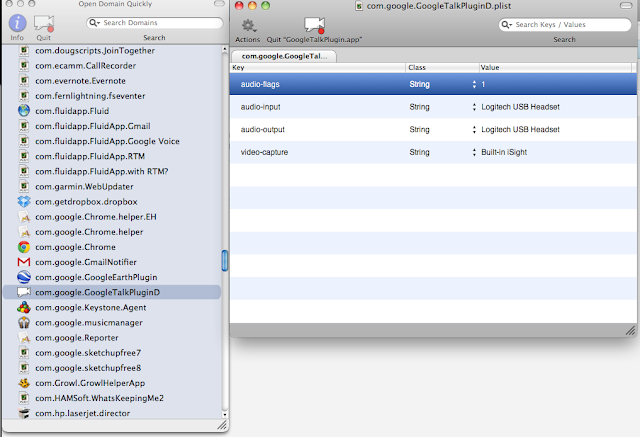
So far I have to reset it for every call. I tried doing it with Chrome all quitted, and then restarting (someone somewhere said I should), but it still resets to 3 pretty often.
For Skype:
I'm gonna try this guy's thingy.
Okay, that doesn't work either, not even a little bit. Bargh.
Now tried this one: seems good so far.
UPDATE 06-06-12
Skype's latest has an option to turn off mic auto-adjusting. Ta da!
So!
For Google Talk (still don't know how that's different than Google Voice) downloaded PrefSetter.app, and changed "audio-flags" to 1.

So far I have to reset it for every call. I tried doing it with Chrome all quitted, and then restarting (someone somewhere said I should), but it still resets to 3 pretty often.
For Skype:
I'm gonna try this guy's thingy.
Okay, that doesn't work either, not even a little bit. Bargh.
Now tried this one: seems good so far.
UPDATE 06-06-12
Skype's latest has an option to turn off mic auto-adjusting. Ta da!
Thursday, January 26, 2012
Recording Gchat Calls with Headset
Used these sources:
Pretty
Also Pretty
Ugly
Here's what to do:
Download Line-In and Soundflower.
Go to System Preferences -> Sound -> Output Device and pick the headphones/mic thing.
Set Line-In to run what it gets from the microphone to Soundflower:

"Pass Thru" apparently is like an on-off switch. It's meant to be temporary.
Go to Gmail settings - Chat and set Soundflower as the output device and your microphone as the input device. [NO! Set the headset thingy to both input and output!]
Set Soundflower to use the microphone as the 2-channel device.

Go to Audacity -> Preferences -> Devices and set Soundflower (2ch) for the recording device.
I think you can duplicate/totally-mess-up some of this by doing it in the System Preferences. I don't think I'm going to mess with that for now.
Can't remember how to turn off the doubly echo thing. Annoying. I know I fixed it once already...


Pretty
Also Pretty
Ugly
Here's what to do:
Download Line-In and Soundflower.
Go to System Preferences -> Sound -> Output Device and pick the headphones/mic thing.
Set Line-In to run what it gets from the microphone to Soundflower:

"Pass Thru" apparently is like an on-off switch. It's meant to be temporary.
Go to Gmail settings - Chat and set Soundflower as the output device and your microphone as the input device. [NO! Set the headset thingy to both input and output!]
Set Soundflower to use the microphone as the 2-channel device.
Go to Audacity -> Preferences -> Devices and set Soundflower (2ch) for the recording device.
I think you can duplicate/totally-mess-up some of this by doing it in the System Preferences. I don't think I'm going to mess with that for now.
Can't remember how to turn off the doubly echo thing. Annoying. I know I fixed it once already...
- Things I've tried:
- muting various things in the midi settings through soundflower
- switching around the line-in settings
- messing with volumes in audacity and system settings
- switching things in system settings (make less difference than you'd think)
Okay, got it.
To Get Rid of Annoying Micro-Delay Echo Torture: I need to stop Soundflower from playing the audio through the headset, so that means I also need to have Gchat go straight to the headphones in stead of going through Soundflower (see black and orange note above).
So that looks like this in the Soundflower menu:

Also need to make sure Soundflower volume is up in the System Sound settings, because I'm pretty sure this affects how loud it is in the Audacity recording, compared to my mic'd voice. Watch the waveform as it records to make sure:

Also make sure that I click on "Logitech USB Headset" after adjusting Soundflower volume, or I won't be able to hear anything.
This is probably a really dumb way to do this...
UPDATE:
And it WAS a really dumb way to do it. Never got it to work consistently. Just bought Audio Hijack Pro. Other than auto-adjusting mic (another post), everything works fine.
UPDATE:
And it WAS a really dumb way to do it. Never got it to work consistently. Just bought Audio Hijack Pro. Other than auto-adjusting mic (another post), everything works fine.
Thursday, November 3, 2011
Interview Video
Interview videos have been skippy and laggy. This site explains how to change the "cache" which I think of as the buffer, but that's probably a whole different thing. A 1000 ms cache works for normal play up to 1.5x speed. 2x speed doesn't even work with a 20,000 ms cache (and another 20,000 for the networked connection, I think), at which point the lag between pressing play and things going gets annoying.
Apparently VLC is part of the problem. GUI is hoggy. Heh.
Downconverted videos using HandBrake with RF=30 and things are much smoother. Have to remember to click the option to keep them as m4a instead of whatever weird apple format it defaults to - for Atlas Ti and all.
Apparently VLC is part of the problem. GUI is hoggy. Heh.
Downconverted videos using HandBrake with RF=30 and things are much smoother. Have to remember to click the option to keep them as m4a instead of whatever weird apple format it defaults to - for Atlas Ti and all.
Monday, June 6, 2011
Phone Audio
From Shannon:
I downloaded the free version of AVS Audio Editor at: http://www.avs4you.com/AVS-Audio-Editor.aspx
I uploaded my file by clicking the tan file folder at left hand top of the page and finding the file I wanted to upload.
I then chose the "Home" tab and there is a button called "equalizer".
I clicked on "equalizer" and on the left hand side there is a column of options. I chose "telephone"
And then clicked "Ok"
The quality was still low, but it was back to around the same quality that I remember hearing on the phone, it is 5X better than the quality that the recorder created as the final product.
It worked well!!! It is now definitely usable!
Thanks for your guidance Devlin!
Shannon
Sunday, November 21, 2010
Audio Quality
Apparently it's harder to transcribe interviews that are recorded at low quality. So, the following email from the transcription folk:
"Currently you're set at 22khz at 16kbit per second
For the Olympus recorders, please use 44.1khz @32kbit or higher to qualify for the Type-1 pricing."
"Currently you're set at 22khz at 16kbit per second
For the Olympus recorders, please use 44.1khz @32kbit or higher to qualify for the Type-1 pricing."
I currently have no idea if this depends on type of audio file (these were WMA), or how it relates to file size / quality selection options on most recorders. Eventually we need to do an experiment to figure out the best quality we can get with a reasonable file size. Right now I record to M4A and pretty high quality (technical term...I really need to get this figured out) because those don't need to be very portable. Then I convert them to Mp3's at 96kbps. I think.
Anyway, the point is: Until we know better, why not record them at high quality and then convert them down as needed for convenience?
(As a partial answer that question - that's sorta dumb because the most limited storage space in the whole thing is on the actual recorder, so that process just adds a bottleneck to a chokepoint by making the files biggest on the smallest storage space. Ayap. Sounds good.)
Friday, November 5, 2010
Phone Interviews
General process:
- Put a thingy on the phone (in between handset and bottom part) to plug into your computer
- Plug thing into your computer
- Use special, stupid software to record from phone.
Things I forgot this time:
- Even though it's only one "thingy," you still need the whole ziplock baggy of "Konexx USB Phone 2 PC" crap to get it to work
- Don't need microphone, or little 3" bit of adapter that plugs into microphone (Yes, this actually confused me for a while today)
- Konexx software only works in Windows (only tested in XP) which means...
- ...the software can get confused about finding the USB device, even if you tell Parallels to "Remember this association"
- Each phone is treated as a completely new "device" for the software to figure out, and if you plug the same phone into different USB ports, it may again think it's in entirely new and uncharted territory.
- Probably only works on the soon-to-be-obsolete office phones we have now
- Office ladies will loan you a phone for conference room
- Dial 9, then 1 (area code and number), then long distance code. I forgot the 1.
Tips for 3 and 4:
- Everything has to be plugged in, battened down and shipshape on the phone before the software will recognize the device.
- If the software asks if you want to run an application (EnumPrep) to check the USB ports again, do it. Every time it asks.
- With the "Abort" or "Retry" pop-up window, click Retry a few times, unplug and replug, and then click it a few more times. I know it sounds stupid, but it often works on the third Retry.
- It's a good sign when the Taskbar balloon tells you it's found a new device. Restarting Windows might help.
- Plan 30 minutes of prep time in interview space because it NEVER works the first 4 times
Things I've learned since I started this:
- The program won't install on Windows 7. In fact, it's a fun little thing where it pops-up an error (something about how it can't recognize the OS) about twice a second. Forever. Just keeps going. Pop. Pop. Pop. Pop.
Genius Tip!!!
- Hole-punch the interview guide on the right-hand side so that you can have it on the left and a blank sheet for notes on the right in a three-ring binder. I'm going to trademark this technological advancement as a "Travelling Mobility Portable Carry-Case 'Interview in a Binder' - Type Binder for Interviews."
Thursday, November 4, 2010
How to Record Audio From a Skype Call
Three main attempts
1] Using Audacity and Soundflower (FAIL)
I like this guy's approach. But I couldn't get to work at all.
My main problem is that Skype could hear me, and Audacity could hear Skype (through Soundflower), but I couldn't get it so that Audacity could hear me. When I called the test number I could record the nice English lady, then Audacity wouldn't register any sound while I talked, but it would record Skype's playback of whatever I said. I think it's because Audacity is only recording what Sunflower sends to it, and Sunflower is only sending along what Skype sends to it, and Skype doesn't send what it picks up on the mic. I'm sure there's some way to get Audacity to record from the mic as well, but I couldn't make it happen.
- In Audacity Preferences / Devices, pick "Soundflower 2ch" for input
- In Skype Preferences / Audio, set the output to "Soundflower 2ch"
- If it sounds echoey, it's cuz both Audacity and Soundflower are playing. Click on Soundflower's splat symbol and check "None (OFF)" for both 2ch and 16ch. Or turn off the playback options in Audacity Preferences / Recording.
- Soundflower's Preferences pane keeps disappearing. I have to quit the "Audio MIDI Setup" application that shows up in the Dock, and then click "Audio Setup" again in Soundflower to get it to come back.
- I don't like Soundflower. It's a weird application that locks up, but you can't Force Quit.
- I made an aggregate device in Soundflower, including the internal mic and the "Soundflower 2ch" for output. I don't know if that would work because it bugs out the program everytime I try to use it.
- Audacity piles up recordings in "tracks," as if you were recording a song piece by piece. It's annoying when you're testing things over and over because playback plays all the tracks together, so I end up deleting the track after every trial run.
2] Using Audacity (acceptable)
The only thing I've been able to get to work without buying anything (stupid stipulation) is to use the freeware program Audacity to record from a microphone. It picks up my voice very well, and, depending on the microphone (USB Blue Snowball mic works well) picks up the other person. It even works to use the internal mic, but the other person sounds a little tinny.
- If either side of the conversation is too loud (can get distorted and sound lower quality than it is) play with the volumes of mic in Audacity, and the volume of playback in Skype.
- If everything is echoed once, in Audacity Preferences / Recording, make sure none of the Playback options are checked. If you've tried out the Skype test call multiple times and haven't erased the tracks, the English Lady may sound echoey too.
3] Buying Stuff (frustratingly acceptable)
The brilliantly named "Call Recorder" for mac and unexpectedly named "Pamela" for windows seem to be the best programs. Both integrate with Skype, so you don't have to.
- Quality doesn't seem that much better than just recording the internal speakers using an internal mic. Which is stupid.
Subscribe to:
Posts (Atom)